Web Domain Setup
Setting up a web domain has five steps: create the domain, add the DNS records, complete the domain settings, verify status, then assign the domain to a portal.
Step 1: Create the web domain
- Sign in to the eCourtDate Console and open the Domains section.
- Choose the customer from the customer switcher at the top left.
- Click Add Web Domain.
- Fill in the Create Web Domain form:
- Name: an internal label for the domain. This can be changed later.
- Domain: the domain to use (for example,
portal.agency.gov). - Alias: choose ecase.io Web Portals (default) for public portals, or courtdashboards.com Data Dashboards for agency data dashboards.
- Agency: the agency this domain belongs to.
- Verification Method: choose how ownership is verified. TXT is the default and recommended. HTTP and EMAIL are also available.
- Click Create. The domain is created with a Verification Pending status.
Step 2: Configure DNS records
After the domain is created, the Console shows the DNS records to add. Open the DNS provider and add them. See DNS Records for the full list and provider specific guides.
Add a routing CNAME, an ownership verification record, and the SSL validation records. Copy each record from the Console, or use Download CSV or Notify to get them out as a file. If the DNS zone is managed by someone else, see Sharing the records with a DNS administrator.
Step 3: Complete the domain settings
Open the domain in the Console and review the additional settings on the edit screen:
- Default Agency: the primary agency this domain routes to.
- Enabled Agencies: any additional agencies allowed to use this domain. Wildcard domains can support multiple agencies.
- Monitoring Reports: a comma separated list of email addresses that receive domain health reports, including DNS, SSL, and blacklist status.
- Region: the region for the domain.
Step 4: Verify domain status
Monitor the domain status in the Console. Once DNS records have propagated and the SSL certificate is issued, the domain shows an Active status. Allow time for propagation, which can take up to 24 to 72 hours. See Verification and Monitoring and SSL Certificates for details.
Step 5: Assign the domain to a portal
Verifying a domain makes it available to select. Nothing uses it until a portal is pointed at it, and a portal keeps whatever domain it was created with, so a portal created before the domain was verified stays on ecase.io until it is changed.
The portal marked Default is the one message links point at, so assign the domain there first.
- Sign in to the staging or production Agency app for the agency where the domain was enabled.
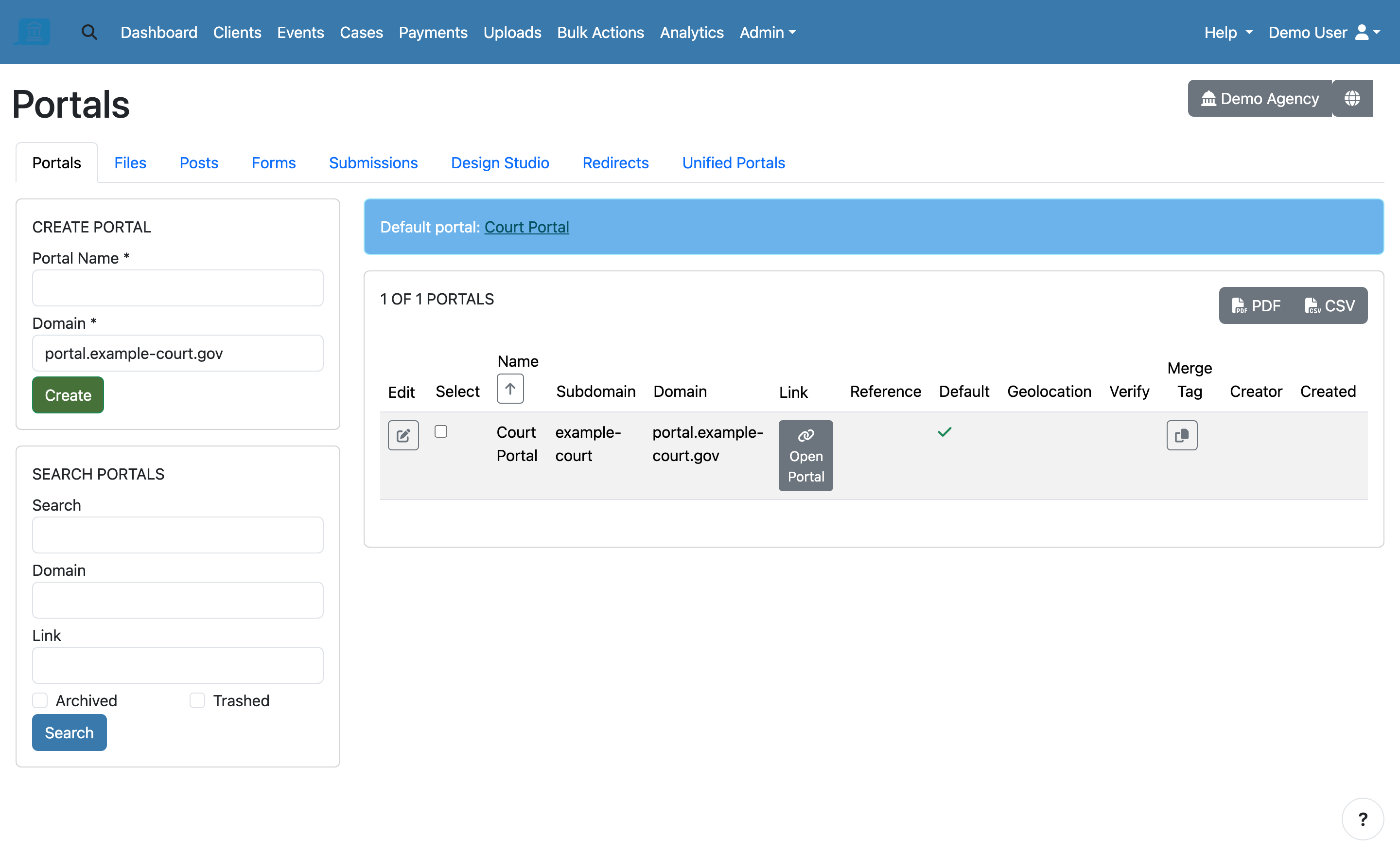
- Go to Admin > Portals. The Domain column shows what each portal uses today, and the banner at the top names the default portal.
- To move an existing portal, open it and change Domain. To create a new one, fill in the Create Portal form and choose the domain in the Domain dropdown.
- Save the change, or click Create.
The Domain dropdown lists ecase.io plus every verified web domain. The Subdomain field applies to ecase.io only and disappears once a custom domain is selected. Assigned correctly, the portal marked Default shows the domain in the Domain column rather than ecase.io:
The Agency Setup Checklist counts Web Domains as complete only once the default portal uses a verified domain, so a domain that verifies but is never assigned leaves that section outstanding.
See also
- DNS Records: required records and provider guides.
- SSL Certificates: automatic SSL provisioning.
- Verification and Monitoring: verification status and monitoring.
- Troubleshooting: resolve routing and SSL issues.