Neumo Jury (API)
Use eCourtDate as the texting service in Neumo Jury. Quickly integrate Neumo Jury and eCourtDate to send text messages to the jurors from Neumo's ad-hoc form.
How It Works
This is a unidirectional integration: Neumo Jury sends messages to eCourtDate, which dispatches them and tracks delivery. eCourtDate does not write back to Neumo Jury.
Prerequisites
The following are required before using this guide:
- A Neumo Jury instance with the ability to modify configuration properties.
- A Super Admin user in eCourtDate.
- The eCourtDate agency must have at least one Agency Phone Number marked as the Primary.
Configuration Steps
We recommend starting with a staging agency to test the integration initially.
- Log in to the eCourtDate Console.
- Click on APIs.
- Choose the customer profile in the top left.
- Create or view an API client:
- To create a new client: fill in the Create API form (enter a name, choose the default region, which determines which agencies are available, then choose the default agency), and click Create. The newly created API client opens.
- To view an existing client: click the Edit button next to the API client's name.
If an API client is not showing when expected it to, verify that the signed-in user is a Super Admin in the default agency configured for that API client. The Agencies page lists them.
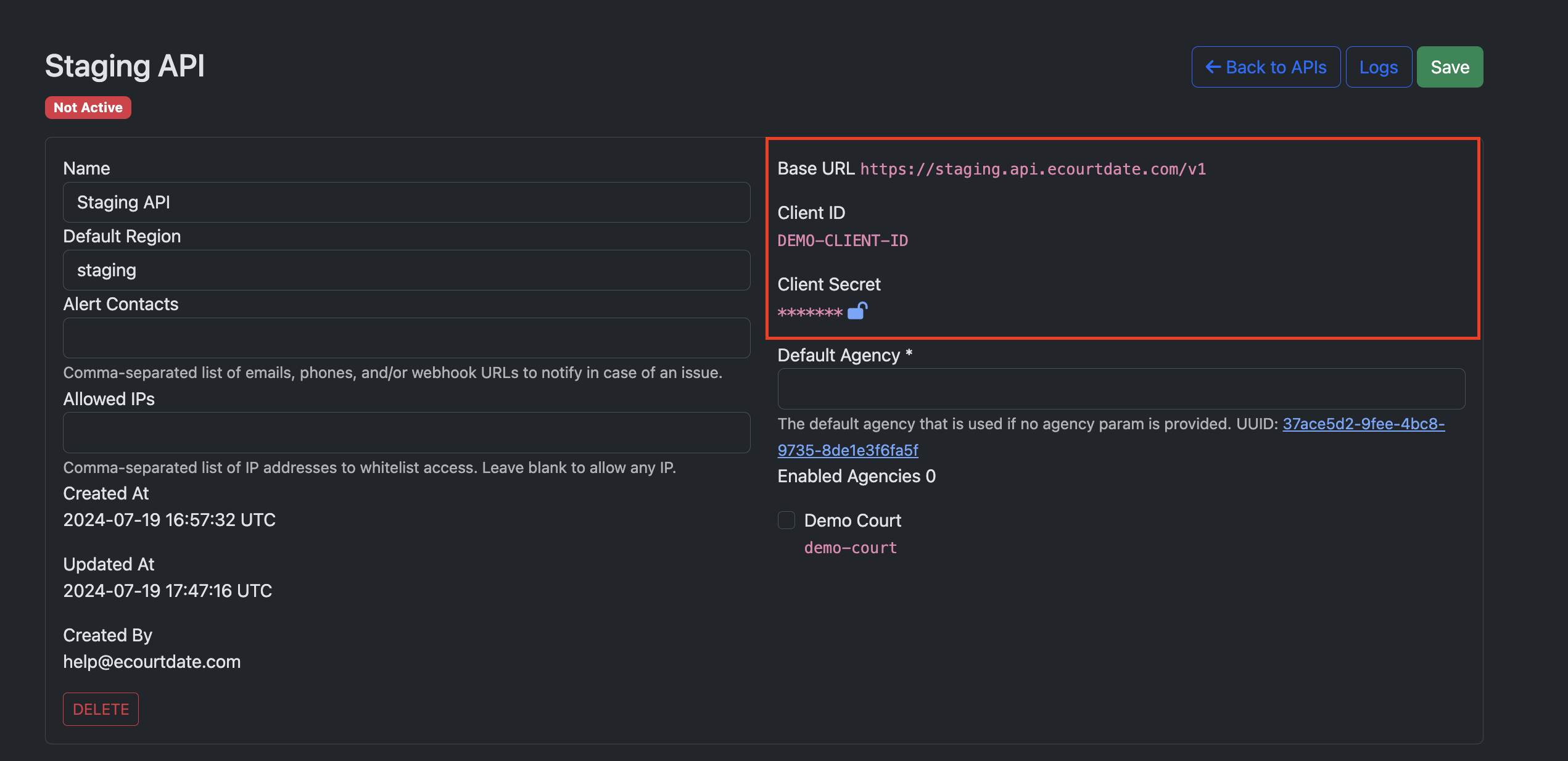
We recommend setting an email address for the Alert Contacts setting. This is used to send notifications of any potential issues related to the API client.
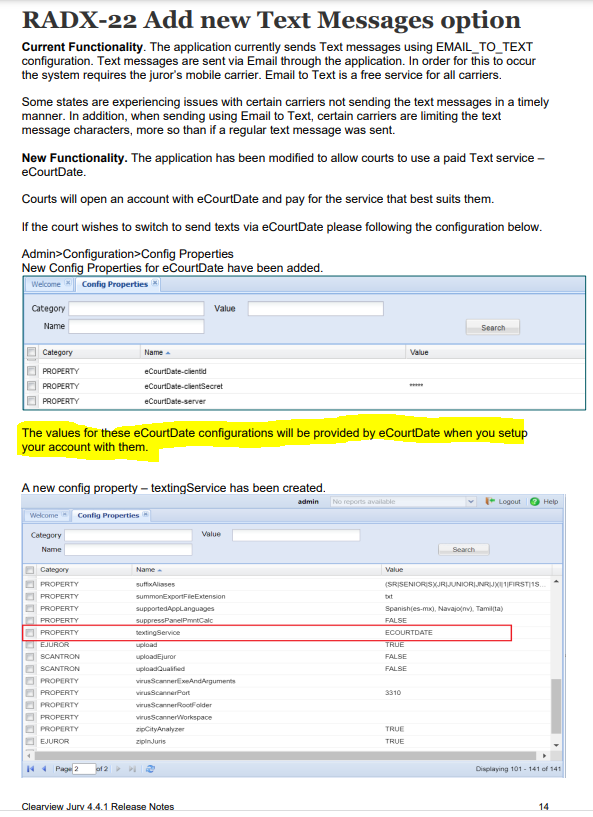
- Log in to the Neumo Admin > Configuration > Config Properties. Update the following configuration properties:
| Property | Value |
|---|---|
eCourtDate-clientId | Copy and paste the Client ID from eCourtDate. |
eCourtDate-clientSecret | Copy and paste the Client Secret from eCourtDate. If the Client Secret is hidden, click the unlock icon to view. |
eCourtDate-server | The eCourtDate API host for the environment (see below). |
eCourtDate-courtId | Set to FALSE. |
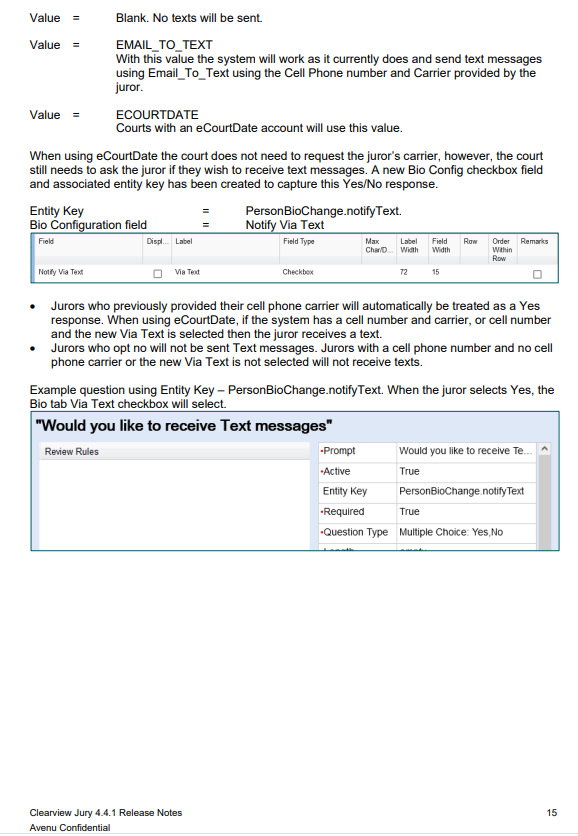
textingService | Set to ECOURTDATE. |
For eCourtDate-server, use the host that matches the environment:
- Staging:
staging.api.ecourtdate.com - Production: the assigned region host, one of:
us-east.api.ecourtdate.comus-south.api.ecourtdate.comus-west.api.ecourtdate.comus-texas.api.ecourtdate.com
What to Expect
Once the configuration is complete, ad-hoc messages can be sent from Neumo Jury. After sending a message, expect the following:
- Neumo Jury's delivery report should not show any errors or issues.
- The eCourtDate API client shows the last active date and time instead of Not Active. If active, the Logs button shows the requests.
- A new outbound message should show in the eCourtDate agency dashboard.
- An attachment uploaded in the ad-hoc form appears linked to the message in eCourtDate.
Troubleshooting
If a message does not send or the API client stays inactive, work through these steps before opening a ticket:
- Check the API client's activity. In the Console under APIs, confirm the client's Last Active shows a recent date and time rather than Not Active. If it is not updating, requests are not reaching eCourtDate.
- Verify the configuration properties. Confirm
eCourtDate-clientId,eCourtDate-clientSecret, andeCourtDate-servermatch the values in eCourtDate. TheeCourtDate-serverproperty should not includehttps://, trailing slashes, or spaces. - Allow cached properties to refresh. Outdated configuration properties may be cached; wait a few minutes and try sending a message again.
- Restart Neumo. If the configuration is correct and more than 15 minutes have passed, try restarting the Neumo server.
- Review the logs. If the client is active, click the Logs button on the API client to inspect the request and response.
If messages still fail to send, create a support ticket in the Console: sign in, click the Help button in the bottom-right corner, and complete the Create a Ticket form. Include the following in the description so the support team can trace the request:
- The API client in use (its name from Console > APIs, never the client secret)
- The request URL
- The request body, with any secrets or tokens redacted
- The response status code
- The response body
- The approximate time of the request
Best Practices
To optimize message delivery, we recommend a few optional settings in eCourtDate.
General Settings
In the eCourtDate agency, click Admin > Settings and update the settings below:
- Default Message Delay: Set this to 0 so that outbound messages are not delayed.
- Send Immediately: Enable this so that outbound messages are immediately dispatched.
- Auto Run Lookups: Enable this so that phone numbers from Neumo Jury are automatically validated.
- Auto Replace Links: Enable this so links in outbound messages are automatically replaced with a trackable portal link.
- Auto Create Contacts: Enable this to track jurors who opt out by replying with a STOP message.
- Default Message Subject: Configure a subject to be prepended to outgoing text messages. This setting supports merge tags.
For Auto Replace Links to work, a Portal must be configured in Admin > Portals. Once enabled, links in outbound messages will use the portal, and when clicked the user is automatically redirected to the original link. This helps minimize spam filters by ensuring carriers do not flag links as suspicious. When a portal link is clicked, the message shows an OPEN status with details of the device that clicked the link. To manage previously created redirects, go to Admin > Portals > Redirects.
We recommend using the agency's own domain for portal links. Read our guide on how to configure a web domain.
Agency Phone Settings
Under Admin > Settings, click Agency Phones, then click edit on the primary phone number.
- Inbound Calls Auto Response: Set a message that will be played as audio when a juror calls the agency phone number.
- Inbound Texts Auto Response: Set a reply message that will be sent automatically when a juror texts the agency phone number.
- Auto-Forward Inbound Calls: Set a phone number to receive inbound calls automatically.
- Auto-Forward Inbound Texts: Set multiple emails or phones to forward inbound texts to. If a phone number, the phone must be able to receive text messages.
Inbound agency phone settings can be tested in staging, where auto responses and forwarded messages are simulated in the dashboard. Agency phone numbers are managed under Admin > Settings > Agency Phones.
How to Configure Multi-Agency
Neumo Jury will send ad-hoc messages to the default agency set in the eCourtDate API client. With multi-agency, each court location can use its own separate agency. This gives each agency a unique phone number with its own inbound auto-responses.
To use separate agencies per court location:
- In the eCourtDate API client, under Enabled Agencies, click to enable the desired agencies. Click Save to apply the changes.
- In the Neumo Jury configuration, set
eCourtDate-courtIdtoTRUE. - Log in to each eCourtDate agency, click Admin > Settings, and set the Agency Reference to match the Neumo Court ID. Click Save to apply the changes.
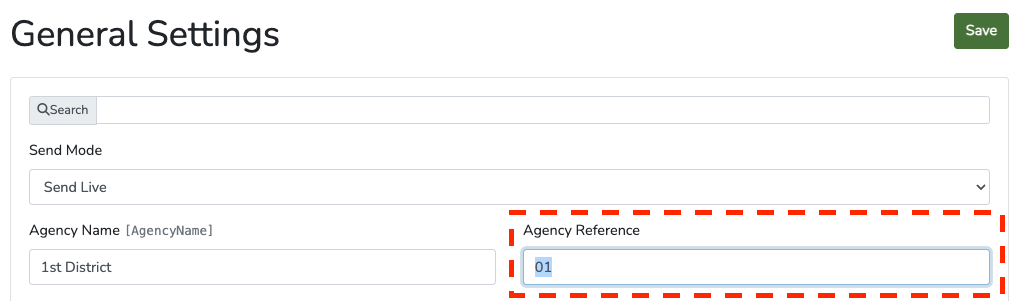
Ensure the Agency Reference is also set in the default agency.
Once configured, outbound messages use the agency matched on the Court ID. The default agency will be used if the agency is not found.
How to Configure a Data Dashboard
Create a data dashboard to track message performance in real time.
-
Click Admin > Dashboards.
-
In the Add Data Dashboard form:
- Choose a Name.
- Set the Status to Private.
- Keep the Data Source as Messages.
- Click Add.
The newly created dashboard opens.
-
(Optional) When using multi-agencies, click the Agencies button, then choose additional agencies to include in the dashboard. After making any changes, click Save.
-
Click Dashboard Link, then click Messages below the map. Messages for each enabled agency appear automatically.
Staging agencies do not sync data with the dashboards. To simulate what a dashboard could look like, enable the Simulate Data option when editing a dashboard.
Supported Merge Tags
When sending outbound messages, the following merge tags are supported if configured on the Agency General Settings page. See the Merge Tags guide for the full reference.
Agency tags:
[AgencyName], [AgencyReference], [AgencyPhone], [AgencyEmail], [AgencyWebsite], [AgencyAddress], [AgencyCity], [AgencyState], [AgencyZip]
Date and time tags (based on when the message is created):
[DateToday], [DateNow], [TimeNow], [DateTomorrow], [DateYesterday], [Date12Hours], [DateNextWeek], [BusinessHours], [BusinessFromTime], [BusinessToTime], [BusinessDays], [NextBusinessDay]
[RandomTag] can be used when testing so that messages are not flagged as duplicates.
Location tags (used if the message is linked to a location):
[Location], [LocationName], [LocationFullAddress], [LocationAddress], [LocationAddress2], [LocationCity], [LocationCounty], [LocationState], [LocationZip], [LocationLink], [LocationInstructions], [LocationPasscode], [LocationNotes], [LocationPhone], [LocationEmail], [LocationWebsite], [LocationDescription], [LocationBusinessHours]
Related
- API Guide: full eCourtDate REST API documentation.
- API Troubleshooting: diagnose connectivity, authentication, and delivery issues.
- Merge Tags: complete merge tag reference.
- Web Domains: configure a branded domain for portal links.
- Common Concepts: agencies, references, and the core data model.