i3 Verticals CourtOne (SFTP)

This integration connects the i3 Verticals CourtOne case management system with eCourtDate using a nightly data export and SFTP file transfer. CourtOne produces a delimited file of upcoming hearings and the people to be noticed, the file is delivered to an eCourtDate managed SFTP server, and eCourtDate processes it into Clients, Contacts, Cases, and Events so the court can send court date reminders without manual data entry.
eCourtDate ships a prebuilt i3 Verticals file template that maps the CourtOne export columns, so most of the eCourtDate-side setup is a few clicks rather than a field-by-field mapping exercise.
Availability
This integration works with i3 Verticals CourtOne in any state. It is not limited to a particular region, court level, or reporting program.
The CourtOne side is configured by i3 Verticals, who confirm which export and delivery options a given deployment supports and the lead time involved. The i3 Verticals Support Representative is the contact for starting that work. The sample file described in Download the Sample File defines the exact column format the export has to produce, and is the reference for both sides.
How It Works
- Nightly data export: CourtOne runs the export each night, after the day's clerk activity is entered, and generates a delimited file with upcoming court dates and party contact details.
- Secure delivery: The file is transferred to an eCourtDate managed SFTP server. eCourtDate provisions the server, its SSH key, and its firewall on AWS GovCloud, so the court does not need to operate an SFTP server of its own. See Managed Server.
- Automatic sync: eCourtDate's Auto-Sync checks the source directory every hour and processes any new file through the i3 Verticals Upload Template.
- Automated messaging: Notifications such as hearing reminders are sent based on the court's message templates and flows.
This is a unidirectional integration. Data flows from CourtOne into eCourtDate. eCourtDate does not create or modify records in CourtOne.
Data Included
The prebuilt i3 Verticals template expects the following twelve columns. Header matching is case-sensitive, so the column names in the export file must match exactly.
| CourtOne column | eCourtDate field | Description |
|---|---|---|
PersonId | Client ID (clients.client_reference) | Unique identifier for the person in CourtOne. This is the key eCourtDate uses to match an incoming row to an existing client. |
FirstName | First Name (clients.first_name) | Given name of the person to be noticed. |
LastName | Last Name (clients.last_name) | Family name of the person to be noticed. |
Gender | Gender (clients.gender) | Recorded gender of the person. |
PhoneNumber | Phone (phone) | Phone number used for text and voice delivery. Saved as a contact on the client. |
EmailContact | Email (email) | Email address used for email delivery. Saved as a contact on the client. |
CaseNumber | Case Number (client_cases.case_number and events.case_number) | Official case number. Mapped twice: it creates the case record and stamps the case number onto the event. |
EventDate | Event Date (events.date) | Scheduled hearing date. |
EventTime | Event Time (events.time) | Scheduled hearing time. |
EventLocation | Location (location) | Where the hearing takes place. Linked to a matching eCourtDate location by name. |
EventDescription | Event Type (events.type) | The kind of hearing, used as the event type. |
EventStatus | Event Status (events.status) | Current status of the hearing. |
One row represents one person on one hearing. A hearing with three parties to notice produces three rows.
These twelve columns are what the standard export carries, and they are what hearing reminders need. If the court needs more than that, see Additional Data.
How Records Are Refreshed
The standard export carries no unique event identifier. Without one, eCourtDate cannot tell a changed hearing from a new one, so the i3 Verticals template uses the Load and Replace All Uploads Using This Template processing method: each nightly file is the complete set of records the template owns, and each run replaces the last.
Events and cases that are not in the file are archived, so a hearing that was rescheduled or cancelled in CourtOne clears on the next run.
Client and contact records are not archived, so a person is not removed from the agency when their hearings clear, but their details are rewritten from the file on every run. Records created by other templates, other feeds, or by staff working directly in eCourtDate are not touched.
Within a run, eCourtDate identifies records using these fields:
| Record | Identified by |
|---|---|
| Client | PersonId |
| Case | CaseNumber |
| Event | The combination of CaseNumber, EventDate, and EventTime |
Because the file is a full snapshot rather than a set of changes, the export has to include every upcoming hearing on every run.
What Load and Replace Limits
Replacing the records each night means eCourtDate holds no state of its own between runs. Three features are affected:
| Limit | What it means for the court |
|---|---|
| Client and contact management | The client, case, and event records this integration creates are rewritten every night. Edits made in eCourtDate, such as correcting a phone number or updating a name, are overwritten on the next run. Corrections have to be made in CourtOne so they arrive in the file. |
| Self-service portals | Clients can look up and view their upcoming event, but they cannot manage their own contact details or notification preferences through a portal, because changes they make do not survive the next run. |
| Analytics and reporting | Reporting covers messaging data: what was sent, what was delivered, and how people responded. Event, client, and case analytics are not available, because those records are replaced each night rather than building up history. |
Removing the Limits with a Unique Event ID
These limits come from the missing identifier, not from the integration. They are removed by including a stable, unique hearing ID in the export, which i3 Verticals configures on the CourtOne side.
With that column in the file:
- Map it to Event ID (
events.event_reference) on the Upload Template. - Change the processing method to Update by Fields, which the Agency app labels Update by Matching Fields (incremental).
eCourtDate can then match each hearing to the record it already holds and update it in place. Records persist between runs, so client and contact management, portal self-service, and reporting on events, clients, and cases all work normally. Cancellations are handled through the EventStatus column instead of by replacing the set: configure the cancelled status to suppress messages. See How to disable messages based on status.
Getting Started
Setup has three parts. The first two happen in CourtOne; the third happens in eCourtDate.
- Configure the export: i3 Verticals sets up a recurring hearing export using the columns listed under Data Included. The sample file from eCourtDate defines the format, so download it first (see Download the Sample File).
- Schedule and deliver the export: Follow Configure the Export in CourtOne below.
- Configure eCourtDate: Follow Configure eCourtDate below and the SFTP guide. For an overview of how this method compares to the alternatives, see How to explore data source options. For hands-on help, schedule a session with eCourtDate.
Download the Sample File
eCourtDate generates a sample CSV with the exact headers the i3 Verticals template expects. This file is the target format for the export, and the reference both sides work from.
- Sign in to the eCourtDate Agency app (staging or production) and open Uploads > File Templates.
- Find the i3 Verticals card. It shows the template's processing method and match fields, then every mapping with the eCourtDate field beneath each column name.
- Click Sample. The browser downloads a CSV containing a single header row with the twelve column names in order.
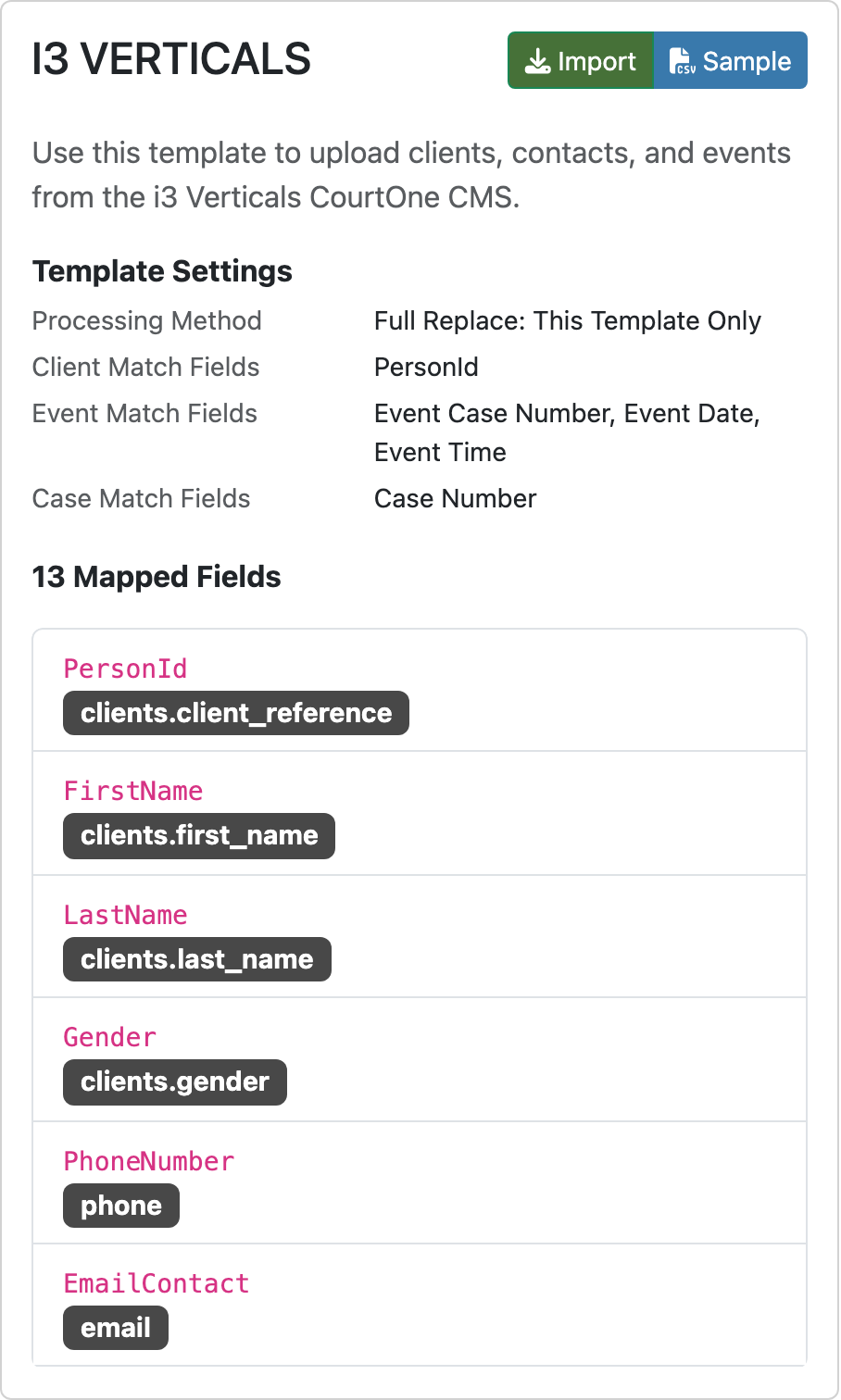
The card counts 13 mapped fields against 12 columns because CaseNumber is mapped twice, once to the case and once to the event.
The header row is the specification: comma-delimited, one row per person per hearing, headers spelled and cased exactly as they appear in the file.
Configure the Export in CourtOne
i3 Verticals configures the export. The settings below define what it has to produce. Set it up in a test environment first where the deployment has one, and repeat it for production once the data has been validated in eCourtDate.
Define the export
| Setting | What to specify |
|---|---|
| Court or location | The CourtOne courts whose hearings and parties should be noticed. If several courts submit separately, ask for one export per court so each can be routed to its own eCourtDate agency. |
| Case types | The case types to include, for example criminal, traffic, or civil. |
| Party types | The party roles that should be noticed, for example defendants. |
| Look-ahead window | How many days into the future to include hearings for. 30 days or fewer keeps the file small and the data current. |
| Columns | The twelve columns listed under Data Included, with headers spelled and cased exactly as in the sample file, plus any additional columns agreed for the deployment. |
| Output format | CSV, comma-delimited, with a header row. eCourtDate also accepts pipe-delimited TXT and XLSX. See Supported File Formats. |
| Filename | A name that includes a timestamp and a keyword, for example 2026-09-04-22-00_CountyCourt_Hearings.csv. The timestamp keeps each export unique and the keyword lets the eCourtDate profile filter on it. See File Naming Convention. |
Schedule the export
Run the export nightly, at 10:00 PM or 11:00 PM in the court's local timezone.
A late-night run captures the full day of activity in CourtOne. Continuances, resets, new settings, cancellations, and dispositions entered by clerks during business hours are all in the file, so what eCourtDate picks up reflects the complete previous day rather than a snapshot taken before the day's work was entered.
Keep the run clear of midnight. A job that starts at 11:45 PM and slips past midnight computes its look-ahead window from the following date, which shifts the range of hearings in the file by a day.
Auto-Sync checks the server once per hour, so a file delivered at 10:00 PM or 11:00 PM is retrieved and processed overnight and the records are in place before staff arrive the next morning. See Recommended Schedules.
Deliver the file
CourtOne delivers the export to an eCourtDate managed SFTP server, which eCourtDate provisions for the court on AWS GovCloud along with its SSH key and firewall. Create the server first (see Configure eCourtDate below). Its connection details are:
| Setting | Value |
|---|---|
| Host | The Host shown in the Console under Server Info |
| Username | ubuntu |
| Port | 22 |
| Directory | /home/ubuntu |
| Authentication | The SSH private key downloaded from the Console with Download key |
A managed server blocks all inbound traffic except from allowlisted IP addresses, so the public IP of the CourtOne machine that connects has to be added on the server's Security tab before the first attempt. See Managed Server.
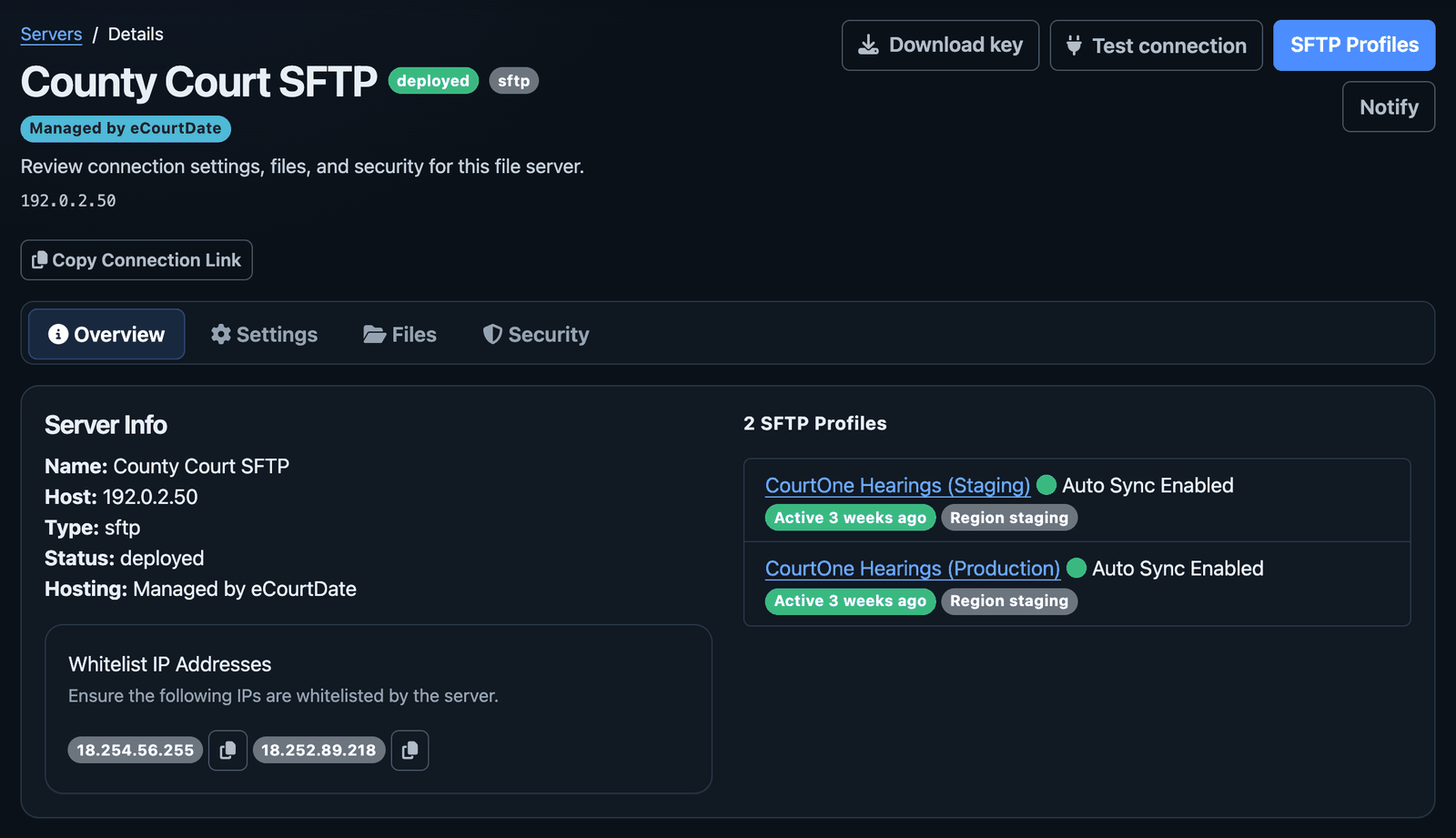
Use one managed server for both staging and production rather than provisioning two. One set of connection details covers both, with a separate directory per environment and one SFTP Profile per directory, each pointing at its own agency.
| Environment | Source directory | SFTP Profile | Agency |
|---|---|---|---|
| Staging | staging/hearings | CourtOne Hearings (Staging) | The staging agency |
| Production | prod/hearings | CourtOne Hearings (Production) | The production agency |
The separate directories are what keep the two feeds apart, so a test file can never be processed into production. See Directory Structure.
Confirm the export runs
i3 Verticals monitors the scheduled export and sends failure notifications by email to the addresses registered for the deployment. A monitored inbox rather than a single person keeps a failed run from going unnoticed while someone is away.
That covers the export. It does not cover the transfer, so set On-Failure Notification Contacts on the eCourtDate SFTP Profile as well. Between the two, the court is told whether a missing file means the export did not run or the file never arrived. See Server Setup.
Additional Data
The standard export is scoped to hearing reminders. Anything beyond that, such as payment notices or attorney contacts, or data more often than once a night, means modifying this integration or building a separate custom one. Both are arranged through i3 Verticals.
Configure eCourtDate
The eCourtDate side has three phases: create and configure the agency, configure SFTP and the Upload Template, then configure messaging. Complete all of it in a staging agency first, validate the data, and repeat it in production.
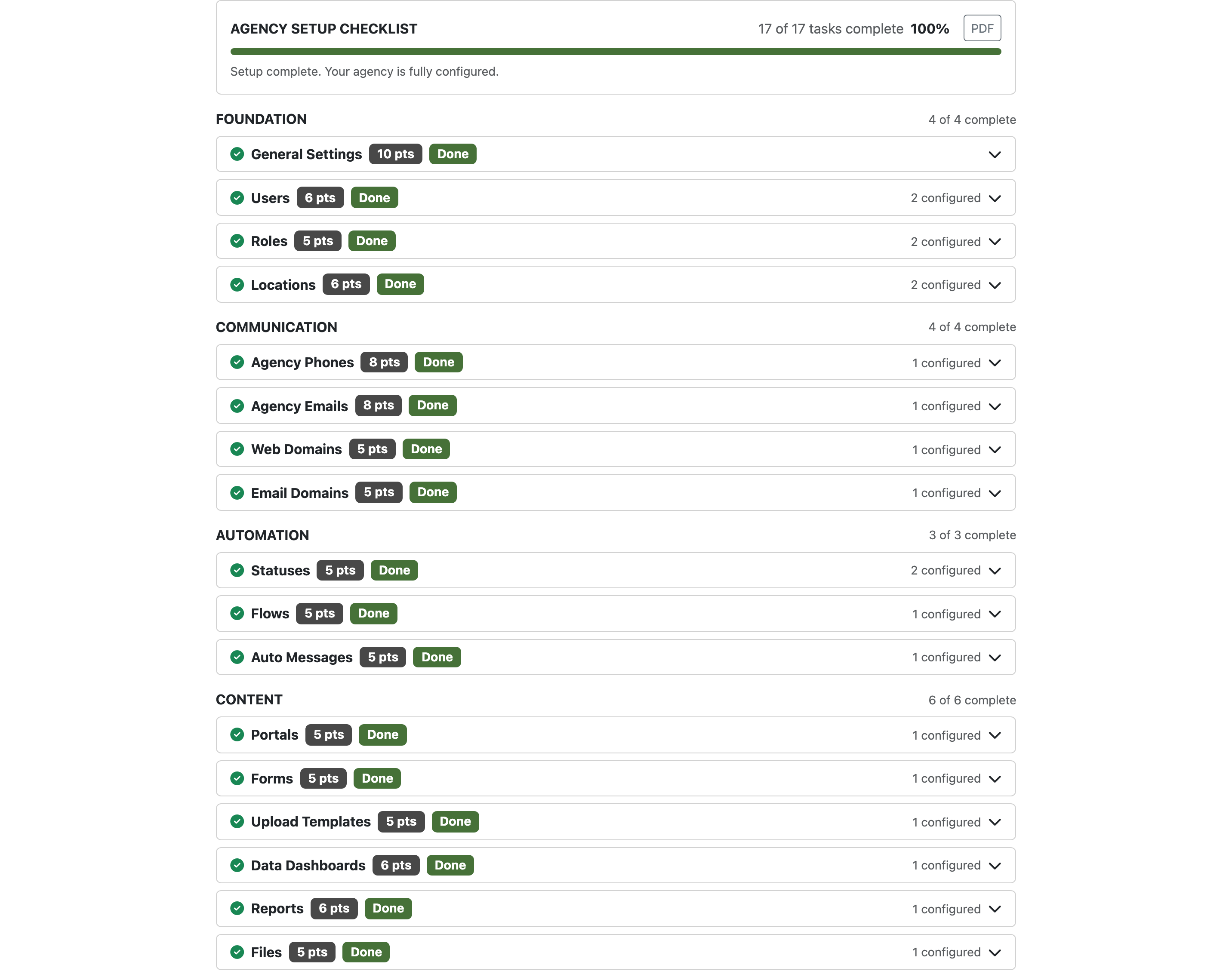
Every agency has a built-in checklist under Agency Setup > Checklist (production, staging). It tracks seventeen setup areas across four groups (Foundation, Communication, Automation, and Content), shows a completion percentage, links straight to each configuration page, and exports to PDF. Work from it rather than from memory, and check it again before go-live. See How to complete your agency setup checklist.
Phase 1: Create and Configure the Agency
-
Create the agency. Each court, department, or use case gets its own agency, with data and settings kept separate. See How to Create a New Agency and How to Set Up a New Agency. Create a staging agency for testing alongside the production one. See Staging and Production.
-
Complete General Settings. Click Admin > Settings. Set the agency name, description, timezone, default language, logo, and send mode. The timezone matters more than anything else here:
EventDateandEventTimefrom CourtOne carry no timezone, so eCourtDate interprets them in the agency's timezone. A wrong timezone sends reminders at the wrong hour. -
Add at least one Agency Phone. Agency phones are the numbers used to send and receive texts and calls, and they are the caller ID clients see. The agency cannot send text or voice reminders until one is active. See How to Manage Agency Phone Numbers. To use a number the court already publishes, see How to Port In a Local Area Code Phone Number.
-
Complete carrier registration. US carriers require registered sender information before they deliver text messages at volume. Start this early, because it is the step most likely to hold up a go-live date. See Carrier Registration and How to Complete Carrier Registration.
-
Add at least one Agency Email. Agency emails are the from addresses used to send and receive email messages. The agency cannot send email reminders until one is active, which matters here because
EmailContactis one of only two contact columns in the export. See How to Manage Agency Emails and How to Configure Agency Email Settings. To send from the court's own domain rather than the shared eCourtDate one, see Email Domains. -
Create the Web Portal. The portal is where a client opens the link in a reminder and looks up their hearing. One portal is marked Default, and that is the one reminder links point at. Create it before the domain steps below, because the web domain is linked to the portal rather than to the agency. See How to Create Web Portals.
-
Set up the Web Domain. Verify the domain in the Console, then assign it to the portal marked Default so reminder links carry the court's own address instead of
ecase.io. Verifying alone does not move a portal onto the domain. See Assign the domain to a portal and Web Domains. -
Set up the Email Domain. Verify the domain in the Console, then put the agency email marked Primary on it so reminders send from the court's own address instead of
@ecase.io. Verifying alone does not move an existing address onto the domain. See Create email addresses under the domain and Email Domains. -
Create the Locations. Give each location a name that matches the value CourtOne sends in
EventLocation, exactly. eCourtDate links events to locations by name, so a mismatch means the event does not land on the right location. Collect the distinctEventLocationvalues from a sample export before building these. See How to Create Locations. -
Add Users and assign Roles. Create accounts for the staff who need access and restrict permissions by role. See How to Manage Users and Roles and Permissions.
Phase 2: Configure SFTP and the Upload Template
-
Create the managed SFTP server. In the Console, open SFTPs, click Add Server, and set Hosting to Managed by eCourtDate. eCourtDate provisions it on AWS GovCloud with its SSH key and firewall. Then find the host under Server Info, allowlist the connecting IP on the Security tab, and click Download key for the
.pemkey, which the CourtOne side needs to authenticate. See Managed Server. -
Import the i3 Verticals template to create the Upload Template, as described in Import the i3 Verticals Template below.
-
Create the SFTP Profile. On the server's page, click SFTP Profiles, then Add SFTP, and choose the agency; a profile created this way is linked to the server. On its Settings tab, set the Source Directory to where CourtOne drops the file, relative to the server's
/home/ubuntu(for example,staging/hearings), set the Filename Keyword to match the export filename, select the i3 Verticals Upload Template, and set On-Failure Notification Contacts so staff hear about failed syncs. See Server Setup and File Naming Convention. -
Enable Auto Sync: check Auto Sync Enabled on the profile's Settings tab and click Save, so eCourtDate checks for new files every hour. New profiles start with it off. See Auto-Sync and Downloads.
-
Transfer a test file and confirm that Clients, Contacts, Cases, and Events are created as expected. Find the file under Uploads in the Agency app and check it for row-level errors. Compare a handful of rows against CourtOne directly. See Upload Acknowledgements and How to Upload a Flat File.
-
Create the Statuses. The imported template creates event statuses automatically as it encounters them, so run the test file first, then review what CourtOne actually sent and configure each status. Statuses control whether messages send at all, so a cancelled or disposed hearing status should be set to suppress messages. See How to manage statuses, How to define custom statuses, and How to disable messages based on status.
Phase 3: Configure Messaging
-
Build the agency's message templates for the reminders being sent. See How to Create Message Templates and Merge Tags for pulling hearing date, time, location, and case number into the text.
-
Configure Flows and Auto Messages. A flow sends a sequence of messages tied to an event, so a hearing reminder flow might send at 7 days, 3 days, and 1 day out. See How to Create a Flow and How to Create an Auto Message.
-
Review generated messages in the Console before enabling delivery. Check that dates, times, locations, and case numbers read correctly for real records, not just the ones spot-checked during testing.
-
Review the Agency Setup Checklist in the production agency under Agency Setup > Checklist, and confirm every group shows complete before go-live. Web Domains and Email Domains stay incomplete until the default portal and the primary agency email are actually on the verified domains, so check those two first.
-
Go live. Point the production CourtOne export at the production directory on the same managed server (for example,
prod/hearings), add a production SFTP Profile on that server for the production agency, and replicate the Upload Template, portal, web and email domains, locations, statuses, templates, and flows there. Settings can be copied between agencies rather than rebuilt: see How to copy settings from one agency to another.
Import the i3 Verticals Template
- Sign in to the eCourtDate Agency app (staging or production) and open Uploads > File Templates.
- Find the i3 Verticals card and click Import.
- eCourtDate creates the Upload Template in the signed-in agency and opens it for editing.
The imported template arrives with the twelve field mappings already in place and these processing defaults:
| Setting | Default |
|---|---|
| Processing method | Load and Replace All Uploads Using This Template, so each nightly file refreshes the records this template owns. The Agency app labels this setting Full Replace: This Template Only on the template card. |
| File format | CSV |
| Delimiter | Comma |
| Field mapping | By column header, using the first row of the file |
| Date format | Auto |
| Time format | Auto |
| Processing order | Descending |
| Auto-create statuses | Enabled, so event statuses in the file are created in eCourtDate as they appear |
Review these against the export before the first live run. The processing method assumes CourtOne sends every upcoming hearing on each run; confirm that with the i3 Verticals Support Representative before going live. If dates or times arrive in a format eCourtDate misreads, set an explicit format instead of Auto. See Upload Templates and How to create upload templates.
Frequently Asked Questions
How do we get started? The CourtOne export is configured by i3 Verticals, through the i3 Verticals Support Representative. The eCourtDate setup runs independently of it: none of Phase 1 depends on the export existing yet, so both sides can proceed in parallel.
Is this limited to courts in a particular state or program? No. It works with CourtOne in any state. All it requires is a recurring export with the twelve columns the i3 Verticals template maps, delivered to the eCourtDate managed SFTP server.
Can we send payment reminders or notify attorneys? Not from the standard export, which is scoped to hearing reminders. Both require modifying the integration or building a custom one, arranged through i3 Verticals. See Additional Data.
Do we need our own SFTP server? No. eCourtDate provisions and manages the server on AWS GovCloud, including the SSH key and the firewall. The court allowlists the IP address CourtOne connects from and hands i3 Verticals the connection details. See Managed Server.
How current is the data in eCourtDate? Auto-Sync checks the server once per hour, so expect up to a one-hour delay between the file landing and the records appearing in eCourtDate. With the nightly export running at 10:00 PM or 11:00 PM, the records are processed overnight and reminders reflect everything entered in CourtOne through the end of the previous business day. Changes a clerk makes during the current day do not reach eCourtDate until that night's run. See Auto-Sync and Downloads.
Can the export be uploaded manually? Yes. If the court has limited IT resources or prefers not to automate file transfers, staff can run the export in CourtOne, download the file, and upload it through the Agency app. The same Upload Template processes the file regardless of how it reaches eCourtDate. See How to Upload a Flat File.
What happens if a person has no phone or email in CourtOne? The client and event records are still created, and the row is not rejected. eCourtDate has no contact to deliver to, so no message is generated for that person until a contact is added, either in a later export or manually in the Agency app.
Can clients update their own contact details through a portal? Not with the standard export. Clients can look up and view their upcoming event, but contact and preference changes they make do not survive the nightly refresh, so corrections have to be made in CourtOne. Adding a unique event ID to the export lifts this limit. See Removing the Limits with a Unique Event ID.
What analytics can we report on? With the standard export, messaging data: what was sent, what was delivered, and how people responded. Event, client, and case analytics need records that persist between runs, which a unique event ID in the export makes possible. See Removing the Limits with a Unique Event ID.
The domain is verified in the Console, but portal links and emails still show ecase.io. What is missing?
The link. Verifying a domain makes it available to select; it does not move existing records onto it. Check two places in the Agency app: under Portals, the portal marked Default should show the verified domain in the Domain column, and under Agency Emails, the row marked Primary should send from an address on the verified email domain. Anything created before the domain was verified keeps ecase.io until it is changed. See Assign the domain to a portal and Create email addresses under the domain.
Does the Agency Setup Checklist count a verified domain on its own? No. Web Domains completes when the default portal uses the verified domain, and Email Domains completes when the primary agency email sends from it. A domain that is verified but not linked leaves both sections incomplete.
Does eCourtDate write data back to CourtOne? No. This is a unidirectional integration. Data flows from CourtOne into eCourtDate. eCourtDate does not create or modify records in the case management system.
What file format does the export need to be? CSV is the default the i3 Verticals template is configured for. eCourtDate Upload Templates also accept pipe or comma delimited TXT and XLSX files, and the format can be changed on the template after importing it. See Supported File Formats.
Related
eCourtDate technical documentation
- SFTP Guide: Server setup, authentication, Upload Templates, Auto-Sync, and troubleshooting.
- Managed Server: Provision the eCourtDate GovCloud SFTP server and find its connection details.
- Upload Templates: Field mapping, processing methods, unique identifiers, and default fields.
- Carrier Registration: Required before US carriers will deliver text messages at volume.
- Web Domains: Serve portals from the court's own domain instead of
ecase.io. - Email Domains: Send from the court's own domain, with SPF, DKIM, and DMARC.
- SFTP Troubleshooting: Diagnose connection and processing failures.
- Common Concepts: Agencies, data sources, and resources.
Help Center articles
- How to explore data source options: Compare SFTP against API, manual upload, and portal self-enrollment.
- How to Create a New Agency: Set up the tenant that holds the court's data and settings.
- How to complete your agency setup checklist: Work through every setup area with a progress tracker and links to each configuration page.
- How to Manage Agency Phone Numbers: Required before text and voice reminders can send.
- How to Manage Agency Emails: Required before email reminders can send.
- How to Create Locations: Match location names to the
EventLocationvalues CourtOne sends. - How to create upload templates: Adjust the imported mapping or build one for a second export.
- How to Upload a Flat File: Manual upload and how to read the processing results.
- How to manage statuses: Control which hearing statuses generate messages.
- How to Create a Flow: Build the reminder sequence that fires off each hearing.